White Balancing Act

Digital cameras have given us many great things: the ability to preview your photos immediately and the ability to change the camera’s sensitivity (ISO setting) on the fly to name only two. But these digital marvels do come with a complex problem called white balance. Let me explain.

Light is the basis for all photography and without it cameras would have a hard time trapping images.  Imagine trying to take a photograph in a totally dark room.  A black picture would be kind of boring.  Not all light is created equal though.

Noonday sunlight is somewhat “bluish” (though our eyes see it as normal-looking). Incandescent lights (light bulbs in your table lamp) are warmer, even orange/yellowish. Fluorescent lights are trickier still; they actually produce a greenish color.

Your brain does not realize these color-shifts though; those two marvelous little “cameras” in your head (your eyes) working with your brain adjust the color automatically and what you really see is normal looking light.  Sometimes you can sense the difference though; like early evening when the sky is deep blue and the light from low-lying clouds glows orange.

In a digital camera the electronic sensor (the camera’s “brain”) is affected by these different tints of light and to compensate it is uses a sophisticated program called white balance. The sensor sees the tint of light (like when you take a snapshot of someone sitting next to a table lamp) and it senses the warmer colors and tries to adjust to compensate for the color shift.

When you are shooting pictures outdoors in the sunlight, the sensor sees bluer light and compensates by adding yellow. In florescent light the camera compensates by adding magenta colors to counteract the green light.

Most cameras allow you to adjust the white balance manually. Indoors and without flash, you can adjust the white balance for incandescent lights and your photos will come out of the printer looking normal.  The setting on your camera might look like a light bulb symbol or it might even say “Tungsten.”

Which brings us to flashes. You may not realize it, but that pop-up flash on your camera is actually adjusted to produce light that mimics the color of sunlight (slightly bluish).  That is why your photos look normal when you use a flash indoors under incandescent lights; the flash overpowers the light bulb and gives the photo a “normal” look.  Your pictures might turn out “orangeish” if you didn’t use a flash.

Room taken under incandescent lights (with white balance)Room photo taken under incandescent lights (no white balance)

The left photo above was taken with the white balance manually corrected for the incandescent lights above the table.  The picture has a more or less “neutral” color shift and looks normal to the eye.  The photo on the right has a warm glow and was not corrected. 

In the “old days” when we all used a roll of film to take our pictures, we purchased primarily “daylight balanced” film. This film had a built-in white balance of 5200 degrees Kelvin (named for some smart guy who discovered the different colors of light on the light spectrum), which is a fancy way of saying it was white balanced for sunlight. Today, with digital cameras, we can change that setting on-the-fly.

Doing a “white-balance” procedure on your camera is really pretty easy.  It varies somewhat by camera model, but essentially here’s what you do: with the “White-Balance” setting selected from your digital camera’s menu, point the camera at something white (like your Aunt Matilda’s white blouse or a table napkin at your best friend’s wedding reception) and press the shutter button.  Voila!  Your camera will “white-balance” for the lighting conditions you are under at that moment.

For example, let’s say you are inside a church banquet room for a wedding reception and all of the lights are fluorescent.  Yuk!  There is green light everywhere.  Actually, your camera’s automatic white balance setting will do a pretty good job of color correcting all of that green light.  But, if you are a perfectionist and want to make sure your photos are the best they can be, do a manual white balance. 

It’s a bit complicated but once you figure out how color temperature works, you can do some cool things with it.

Blue toned pictured

So, what if you wanted to get creative and make a scene have a blue-tone.  This blue toned picture might be great for low contrast situations and creates a moody blue glow around the person.

Here’s how to do it:

When you’re outdoors, set your white balance to tungsten lighting. This tricks the camera into thinking that the light coming at it is heavily orange. In return it adds more blue than necessary on top of the already blue daylight.

It’s a trick that used to take filters and special film or cross processing, and now you can do it with a couple buttons on the camera.

So, there you have it, the basics of light.  Go experiment and have fun with your photography!

How To: Make Your Own Outdoor Two-Light Studio

Did you know that when shooting pictures outside you can have your own two-light studio?  I like to think of it this way; you provide one of the lights (with an on-camera pop-up flash) and God provides the other light (the sun).

Here’s how it works.  Chose a camera position or pose your subjects with the sun slightly behind them; not directly behind them or you will get a lens flare from pointing your camera into the sun. 
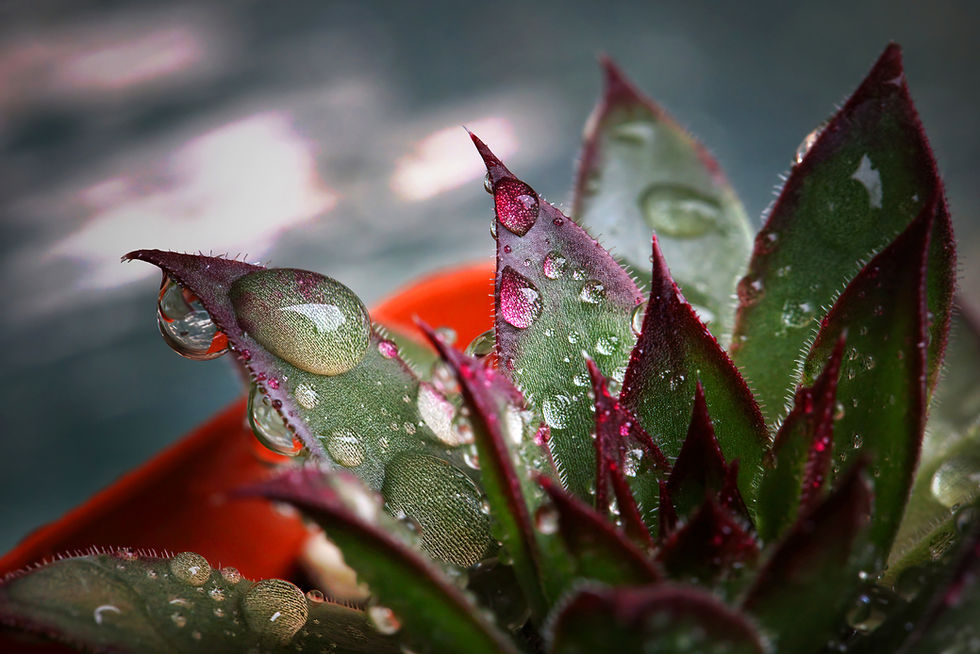
Now, with this kind of posing, the sun actually creates what I like to call a “hair-light” or a “rim-light.”  The sun acts as a backlight and creates a nice separation between your subject and the background.  The lower the sun is in the sky, the better the effect.

Now, choose a setting on your camera that makes your flash pop-up (some cameras have a setting for this called “fill-flash”).

For added effect, position your subject so the background is darker (it will make your subject really stand out).  Lastly, step back several yards and zoom in on your subjects with your zoom lens (using the telephoto effect).  This will cause the background go slightly soft (shallow depth of field) and make your subject really pop off the page.

Voila!  Instant (two-light) portrait studio.

Till next time, keep making those memories and come see me at MotoPhoto.

Media Cards: Accidentally Deleted Your Images? There May Be Help.

Several weeks ago my phone rang at home. The call was from Paris, France. The man’s voice identified himself as Russell. He sounded urgent, like someone who needed to confess a major sin but he wasn’t quite sure where to start.

“We’re from Tyler and my wife and I are vacationing in Europe and I accidentally formatted my digital camera’s media card and all my images are gone and whatdoIdo?” he blurted out. It was the longest run-on sentence I had heard since ninth grade English class.”

All’s not lost, Russell,” I replied calmly, thinking all the while, “Whoa dude! That’s not good! Your wife is going to kill you.” Of course, I kept that thought to myself.“

Okay, don’t take any more pictures with that media card; put it someplace safe. I think we can restore your deleted pictures when you return to the states. But, you must stop taking pictures with that card.”

Back in the good old days of film photography this kind of thing could never happen. The biggest mistake a person could make back then was opening your camera back and exposing all of your film (which happened a lot).

Whether it is formatting your digital media card or opening your camera back, both can be lethal to your photos. In the world of digital photography however, resurrecting accidentally deleted images is all in a day’s work; at least it is when you have the right kind of recovery software and a good computer.

As it turns out, the term “delete” is a bit of a misnomer. When you press the “delete” button on your digicam, most cameras don’t really erase the images on your media card. Actually, the camera just instructs the media card to electronically mark the “deleted” images with a special code that tells the card there is new space available for saving more photos. As you take more photos, the camera finds an empty slot on the media card to save new images, including the space that you made available when you “deleted” your images.

Formatting your card is a differnet story though. Some cameras (and computers) actually format the media by writing “zeros” to the card. It is my understanding that Canon and Nikon don’t do that. My own experience bears that out. I have had very good luck recovering lost images from Nikons and Canons.

In the world of emergency media card recovery, the problem occurs when you keep taking photos after you have discovered your mistake. Every time you snap the shutter and record one more picture to your media card, you increase the chances that you will not be able to recover all your “lost” images. What a crazy world! Erased is not really erased. Delete does not delete. Media cards instead of film. In digital photography, nothing is what it seems to be.

A couple of weeks ago a young Dallas Metroplex family suffered the same fate when they accidently formatted their digital media card and lost all the pictures of their newborn twins, from the delivery room right up to several months old. 

They had heard about MotoPhoto-Tyler emergency image recovery services and mailed us their media card.  Within 24 hours we recovered all of their pictures and had a recovery CD disk plus their media card on its way back to the family.  This mama was literally in tears when she heard the news!

Now, back to my new-found friend Russell. He took my advice and stopped using his camera media card immediately and bought a new one in Paris. He safely packed his old card away and brought it into our store the day he returned from Europe. We processed his card through our image-recovery software, intoned a few incantations and voila . . . . all of his pictures were recovered!

When he heard the good news, Russell was delighted, his wife did not kill him and I felt like a super-hero.

It does not always turn out this way though.  Sometimes there are mechanical problems with the media card.  Sometimes the camera really does overwrite the card with data (zeros) making it impossible to recover the images.

Much of the time though I get to make a “good-news” phone call - “Your pictures have been recovered!”

Until next time, keep making memories and come see me at MotoPhoto in Tyler.
 

Secrets of The Pros: Taking Great Outdoor Portraits

Did you ever wonder how pro photographers seem to be able to make their people portraits just pop off the page?  There is an easy-to-learn technique, but you need to first understand a basic principal of cameras.  It’s called depth of field.

Example Long Depth Of FieldThey say a picture is worth a thousand words, so look at the first photo on the left.  This is a picture of my child bride, Lynda.  In this picture, she is sharply focused, but so is the background trees and house.  In fact, maybe the background is too sharp, clear and cluttered; almost to the point of being distracting. 

Look at the second photo below.  Using my telephoto camera setting, I zoomed in on Lynda. The background is more blurred yet Lynda is still sharp and clear.  But, doesn’t the second photo look better?  The background is not as distracting as in the first photo.

Controlling background blur is one of the secrets to good portraiture.  It is achieved by manipulating your depth of field or, in layman’s terms, making the subject of your portraits look good by making the background look more blurry. 

How in the world does a photographer achieve that?

Example Shallow Depth of FieldDepth of field is actually a term that describes a range of focus — or more accurately a range of distance measured in feet (or meters), of things that are still in focus in front of and behind what you are actually focusing on.  That range of focus is controllable at the camera, but more about that in a moment.

It is said that a long depth of field produces a photo that has more in focus in front of and behind your subject.  Conversely, a shallow depth of field has less distance in focus in front of and behind your subject.

In landscape photography, you probably want a long depth of field so that everything is in focus.  In portraiture though, a shallow depth of field is actually your friend and this technique will blur the background and thus make your portrait subject stand out.

So, how do you control the depth of field?  There are several ways:


  1. Step back from your subject and zoom-in to compose your photo using the telephoto setting on your camera’s zoom lens.  The more telephoto your composition, the more shallow your depth of field will be. Try it!  Instead of walking up close to your portrait subject, next time step back about 15-20 feet and use the “zoom-in” feature on your camera lens.  Frame your subject and take the picture.  The first thing you should notice is that the background actually will go softer while your subject stays tack-sharp.
  2. Another way to control depth of field is by controlling your f-stop.  Yikes!  What is an f-stop?  It sounds like an all-night diner. 

On many cameras you can manually set the aperture (often called the “aperture-value” setting) and let the camera automatically choose a shutter speed that gives you a correct exposure.  This aperture-value setting is actually called the f-stop.  F-stops are expressed as numbers, like f-16 (a small aperture hole) or f-3.5 (a large aperture hole).  Notice that the smaller the number, the larger the hole and conversly, the larger the number, the smaller the hole.  Go figure!  It seems to me like it would be the other way around. 

Let’s chase a rabbit for a moment and do a quick sub-lesson on apertures and f-stops.

The f-stop setting on a camera acts like the pupils do in your eyes.  When the sun is bright outside, the pupils in your eyes close down, like small, pin-point dots.

When you move into a dark room however, your pupils open wide to allow in more light.  The same thing happens inside a camera lens.

On a brightly lighted beach scene, the f-stop (aperture) on your camera closes down like a small pin-hole (f-16) to reduce the amount of light that hits your camera sensor (or film in the old days).  If it didn’t do that, your photo would be overexposed. 

But, when you go inside to shoot a romantic photo of your husband under candlelight, the camera says to itself, “Whooooooa, this lady is trying to shoot a photo in the dark!  I’ve got to get some light on her man!”  (Okay, okay . . . . . the camera probably doesn’t really say that, but you get my meaning).

Inside that dark room, the camera then automatically opens up the aperture f-stop (f-3.5) to allow as much light as possible to hit the sensor, thus making a correct exposure in a low-light situation.

Now, back to depth-of-field (Whew!  That whole f-stop thingy could have been a deep rabbit hole.)

Small apertures (a small hole like the pupil in your eye on a brightly lighted beach) will create a long depth-of-field where virtually everything is in focus in front of and behind your subject. This is an important and fundemental concept in photography.  I advise you to remember it . . . .like your wife’s birthday.  Did I tell you about the time I forgot Lynda’s birthday?  It was not pretty!

Anyway, a wide aperture (a large hole like you would use when you are photographing inside a dimly lit room) will create a shallow depth-of-field and only your subject will be in sharp focus and everything behind your subject will drop off to a soft focus and possibly even be blurry.

Summary

Large aperture = small f-stop number = shallow depth of field

Small aperture = large f-stop number = long depth of field

I know, I know, this stuff is confusing!  But, depth of field is how pro photographers make those fabulous looking portraits, by controlling the size of the aperture and the depth of field and by zooming in on their subjects (using the telephone setting on your camera).  The combination of both can be a powerful tool in creating great portraits.

We’ll look at more portrait hints in a future blog (like dark versus light backgrounds and using color and black and white in the same picture). And if you are in the neighborhood, come see me at MotoPhoto in Tyler, Texas.  I love to talk photogrpahy.  We are located on South Broadway Ave., right in front of the Holiday Inn Select and across from Lowe’s/Outback and the Olive Garden.

In the meantime, check out these cool links on the subject of depth of field

Wikipedia

Cambridgecolour

YouTube Photography Tutorial on Depth of Field 

Let me hear your comments.

Until next time . . . .keep creating memories!

Ron

Are Your Photo Albums Full of Fading Memories?

Some time ago a fifty-something “baby-boomer” came into our Tyler, Texas MotoPhoto store with an armful of photo albums. She tearfully described how, while cleaning out old cabinets at home, she found her college photo albums and decided to take a quick detour down memory lane. What happened next both startled and frightened her. Her college-era snapshots were all fading to pink (in the photo industry we call that color magenta).

I don’t know about you, but I have always felt secure knowing that tucked away in closets and dark boxes, our most important memories are all there to see, anytime we want to make the time for a trip into another era? I felt that way – until I took a look myself.

Going, Going . . . GONE!
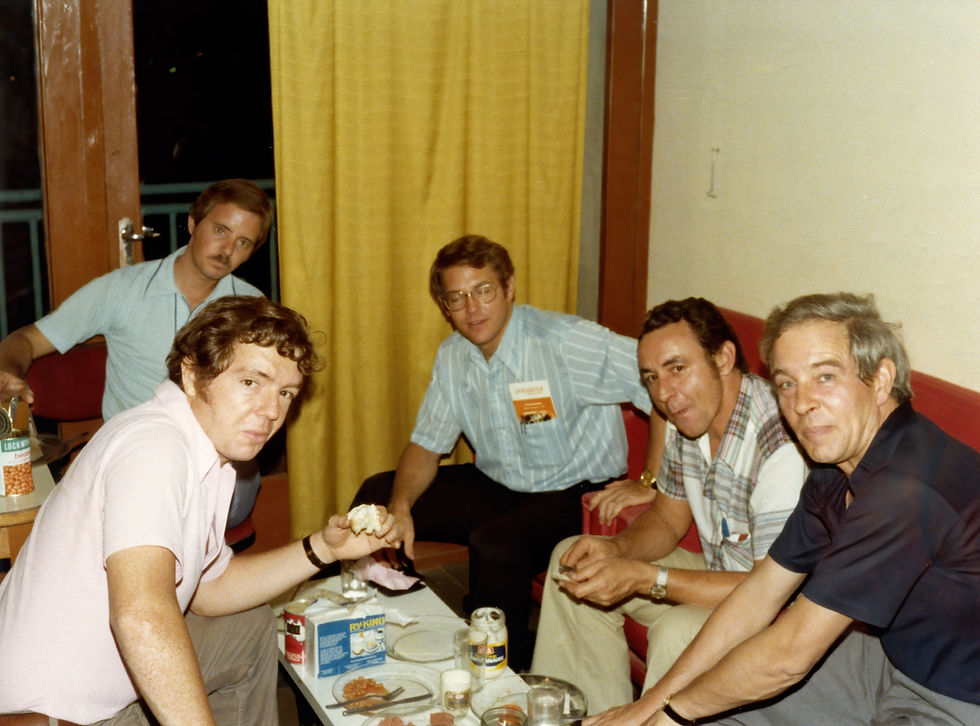
Faded Ragan family photo taken in 1976 in Geneva, Switzerland Same Ragan family photo after rerstorationThe photos at the left are my own. They were taken in 1976 where my wife Lynda and I lived in Geneva, Switzerland. The one on the left is faded and turning pink. The one on the right was “fixed” with one click from some amazing software (see below).

Baby Boomers and Gen Xers own countless photo albums and picture frames stuffed with images taken during the nineteen fifties through the eighties. These irreplaceable pictures, college snapshots, portraits of deceased parents, never-to-be-repeated and life-shaping events — all precious memories — were all captured on color film and most were printed on Kodak, Agfa and Fuji color paper.

These aging color photos were developed by commercial photo labs during an era when color photographic papers, even the biggest names in the industry, were chemically unstable and prone to fading with time.

It is fascinating to consider that today’s Boomers and Xers, over a 126 million of them, could be the first photographically undocumented generations in recent history as their photos fade to nothing?

Generations before them are still photographically well preserved. Even vintage black and white World War II photos look pristine compared to their newer color counterparts. Why? Because black and white photographic papers used during the nineteen thirties and forties were (and still are) very stable compared to color papers used in later years.

Save Your Memories
It is time to take action. Don’t wait another moment. Click here to read timely “how-to” solutions for digitally scanning and repairing your irreplaceable images before they have vanished into oblivion.

Visit Us Again - New Posts Coming Soon

  • TIPS - Protect your digital images - backup strategies (including online) for your digital photo files.
  • TIPS - How to take beautiful portraits of your children - secrets of pro photographers
  • Using my flash outside in the sunlight - why would I want to do that?

Simple Steps You Can Take To Save Your Fading Memories

You will need a good computer with a good processor and a fair amount of RAM (1-2 GigB). Imaging software uses a lot of computer resources.

You will need a decent flat-bed scanner.

  • If you are comfortable with computers and imaging software, purchase a copy of Adobe Photoshop Elements.
  • Purchase, download and install a copy of Kodak’s ASF ROC plug-in for image restoration. Here is a link where you can go download it: http://www.asf.com/ . The regular version is powerful enough for most restoration ($49.95) and the “Pro” version ($99.95) offers better control for fine-tuning your images. You can download a trial version for testing. The trial version adds a watermark to your images, so you will need to purchase a copy if you like the results and the watermark will go away.
  • Using Photoshop Elements, ASF ROC plug-in and scanner, scan your faded images and save them to a place on your computer’s hard drive where you can get to them easily.
  • After scanning your pictures, using your Photoshop Elements, open your faded images one at a time and go to the “Filters” tool, find the ROC plug in you just downloaded and apply it to each faded image. You will be amazed at the results. Be sure and re-save the “fixed” picture with a different file name and make prints of the new images using your favorite photo-lab or your home ink-jet printer. Modern photographic papers and even ink-jet papers and ink will be fade-free for 50-100 years or more (depending upon storage conditions).
  • If you are not comfortable using computers and imaging software, take your faded photos to a good specialty photo lab that offers restoration services and they should be able fix you up.  In Tyler, Texas our own MotoPhoto image specialists have much experience in restoring faded photos and can do this for you quickly and for a reasonable price.  We are located south of Loop 323 on South Broadway Ave., across from Lowe’s/Olive Garden/Outback, next to the Sonic and right in front of the Holiday Inn Select.

If you want to experiment yourself with Photoshop’s powerful restoration features, click here for a good article on how to restore faded photos without purchasing a plug-in.
Happy memories!